MCP Integration
Model Context Protocol (MCP) enables seamless connections between AI assistants and external tools. Toffu supports MCP in two ways:
1. Use Toffu from Other AI Tools
Connect Toffu to Claude Desktop, Cursor, ChatGPT, and other MCP-compatible AI clients. This lets you access Toffu's marketing capabilities directly from your preferred AI assistant.
Available Tools
query_campaign_performance (Campaign Performance, All Platforms) - Campaign metrics across every connected ad platform (Google, Meta, LinkedIn), merged into one normalized table with per-currency totals. Read-only.
send_message (Ask Toffu) - Delegate any marketing task or question to Toffu, the AI marketing agent: analytics, content, reports, campaign work. Long tasks return a session id; collect the answer with get_task_result.
get_task_result (Get Toffu Task Result) - Collect the answer for a long-running send_message task. Read-only.
creative_report (Creative Performance Report, Meta Ads) - Every Meta ad with its creative (title, text, thumbnail) joined to performance: spend, CTR, CPC, conversions, CPA, ROAS. Read-only.
fetch_memory (Search Marketing Memory) - Search your company's marketing memory: strategy decisions, past campaigns, brand guidelines, learnings. Read-only.
propose_change (Propose Campaign Change) - Stage a campaign budget/status change and get a preview. Nothing executes at this stage.
apply_change (Apply Approved Change) - Execute a confirmed proposal. Disabled by default per workspace; all changes run under hard spend caps and are undoable.
undo_change (Undo Applied Change) - Revert an applied change to its pre-change values.
Budget changes are off by default for every workspace. Until an admin enables them, the change tools return a clear policy notice — by design.
Setup — One-Click Connect (Recommended)
Toffu supports OAuth sign-in, so most clients connect with no API keys and no config files:
-
In your AI client, add a custom connector / MCP server with the URL:
https://mcp.toffu.ai/mcp- Claude Desktop / claude.ai: Settings → Connectors → Add custom connector
- ChatGPT: Settings → Connectors → Add connector (requires a plan with connector support)
-
Click Connect. Your browser opens a Toffu authorization screen.
-
Sign in to Toffu if needed, pick the workspace you want to grant access to, and click Approve.
-
You're returned to your AI client with Toffu connected.
The client gets access to the workspace you approved, acting with your permissions. To revoke access later, disconnect the connector in your AI client.
Setup — API Key (for clients without OAuth)
Some clients (e.g. Cursor) connect with a static API key instead.
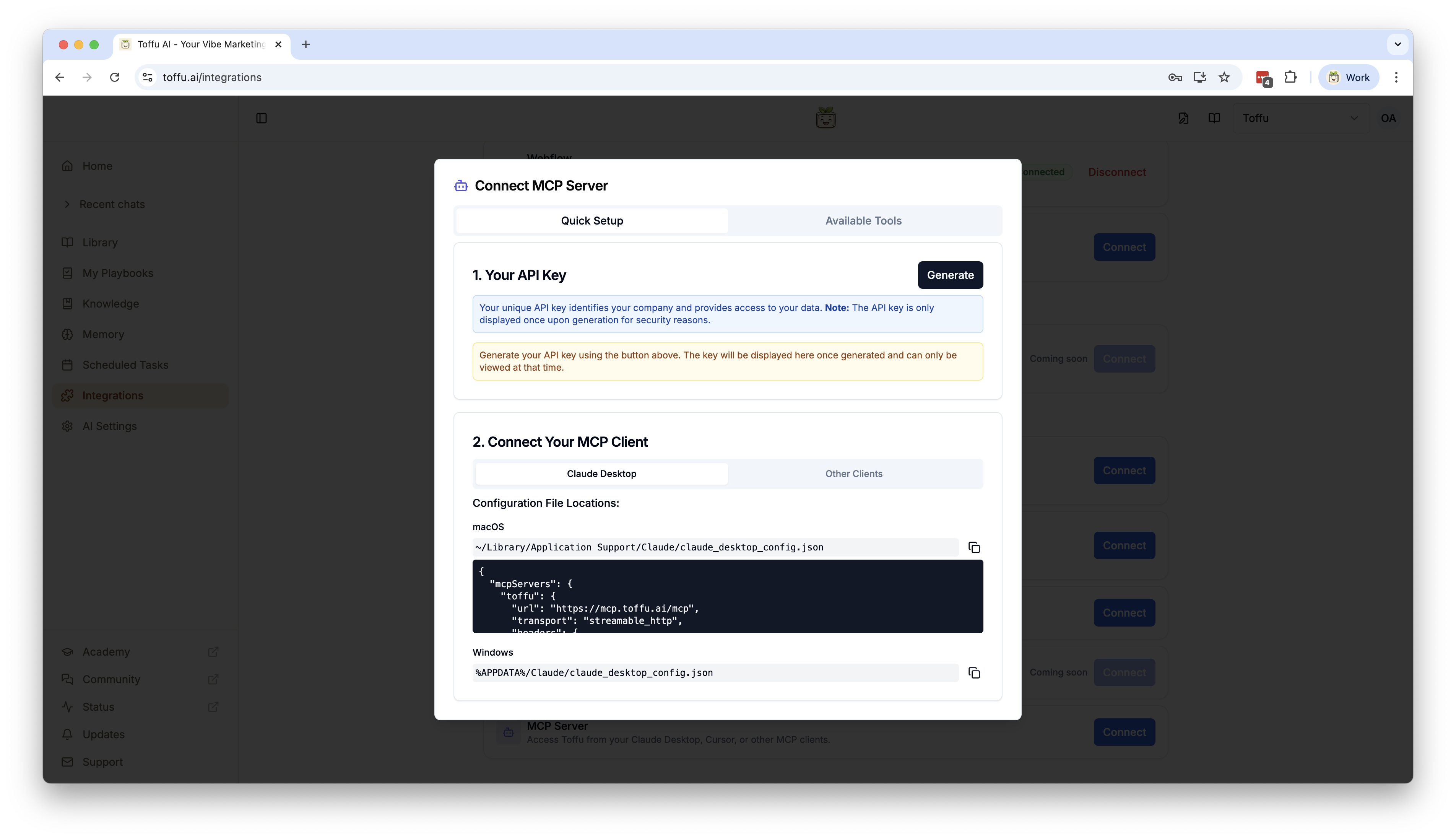
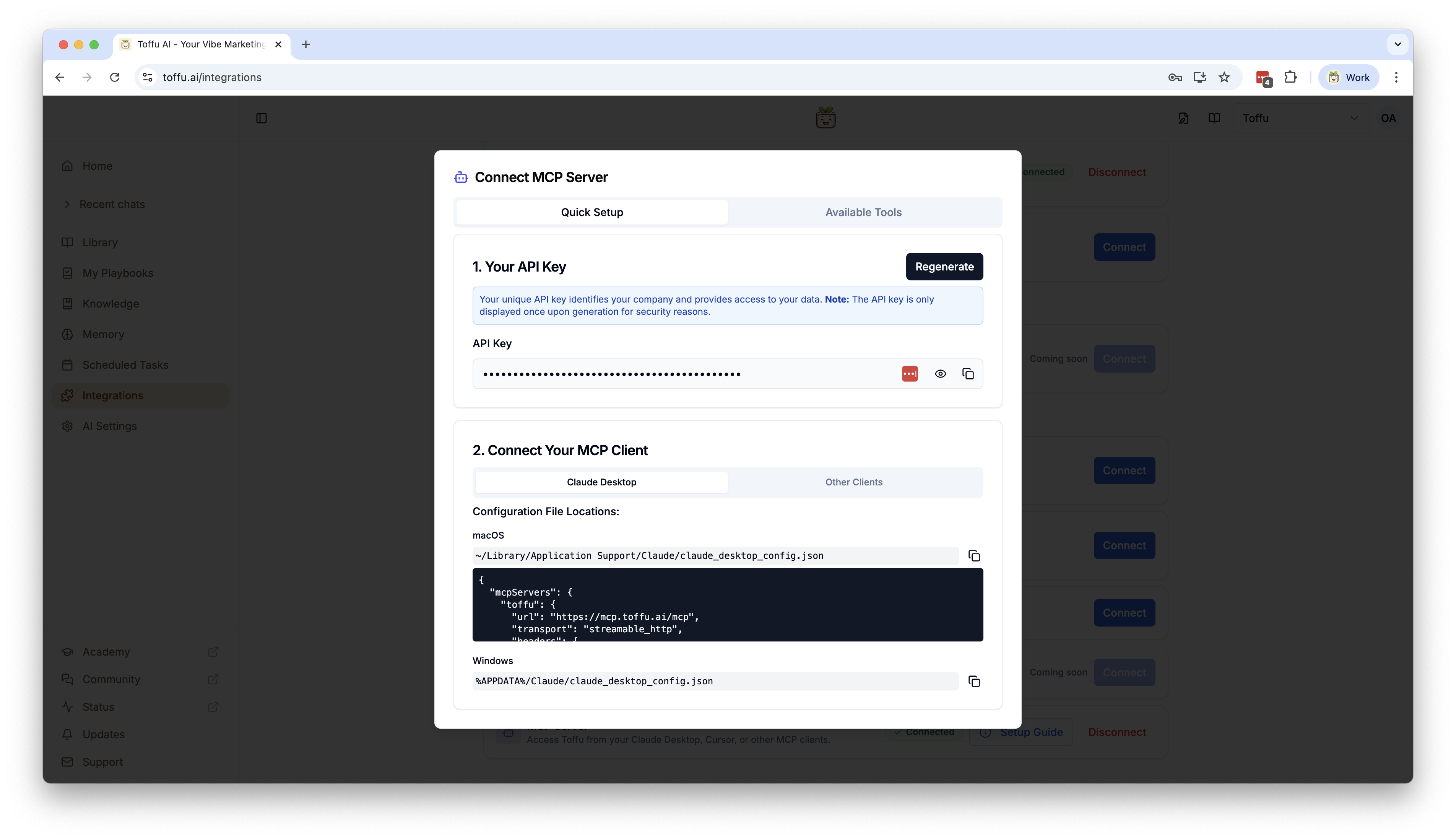
Step 1: Generate API Key
Go to Integrations → Scroll to MCP section → Generate API Key
Make sure to copy the API key when you generate it, it will not be shown again. If you lose it, you can generate a new one.
Step 2: Configure Your AI Client
Cursor
Add to your ~/.cursor/mcp.json:
{
  "mcpServers": {
    "Toffu": {
      "type": "streamable-http",
      "url": "https://mcp.toffu.ai/mcp",
      "headers": {
        "Authorization": "Bearer your-api-key-here"
      }
    }
  }
}
Replace your-api-key-here with your actual API key.
Start Using Toffu
Claude Desktop: Use @toffu fetch_memory "query" or @toffu send_message "request"
Cursor: Access Toffu tools through the MCP integration panel
Example Use Cases
Research: @toffu fetch_memory "competitor analysis" → Use insights for strategy
Content: @toffu send_message "Create LinkedIn post about our new feature"
Analysis: @toffu send_message "Analyze Google Ads performance this month"
2. Connect External Services to Toffu
Add MCP servers from external services (like Ahrefs, GitHub, databases, or custom tools) to Toffu. This expands Toffu's capabilities beyond its native integrations, allowing it to access additional data sources and tools when helping you.
Setup
- Go to AI Settings
- Scroll to the MCP Servers section
- Click Add MCP Server
- Enter the MCP server details (URL, authentication credentials)
- Save and enable the connection
Once connected, Toffu can automatically use these external services when relevant to your requests.
Popular MCP Servers
- Ahrefs - SEO metrics and backlink analysis
- GitHub - Repository data and code insights
- PostgreSQL/MongoDB - Direct database access
- Custom APIs - Your own internal tools
Troubleshooting
"Connection request expired" on the approval screen: The sign-in link is valid for a few minutes. Start the connection again from your AI client.
Stuck on Connect / sent back with an error: Make sure you're signed in to toffu.ai in the same browser, then retry. If your account has several workspaces, confirm you approved the one you meant.
Authentication errors (API key setup): Verify the API key is correct and hasn't been regenerated since you copied it.
Connection issues: Check network connectivity to mcp.toffu.ai
Tool errors: Ensure required integrations are enabled in your Toffu account
Need Help?
- Technical support: Email mcp-support@toffu.ai